Getting started with OCR
Before getting started with OCR, we need to make sure our images will produce results with high enough accuracy to be useful for our needs. Let’s consider what makes an image a poor candidate for OCR and preprocessing tasks that can improve image quality.
Image Selection
Some images are poor candidates for OCR. Documents with the following features may produce less-than-ideal results:
- Complex page structures
- Images
- Poor contrast
- Fonts
- Gutters, shadows
- Skewed pages
- Multiple languages on a single page
- Page damage (smears, tears, rust, etc.)
While both preprocessing tasks and machine learning engines can improve OCR results, some documents will always need a human eye.
This copy of the Western Kansas world has several challenging features: poor contrast, shadows, images, and a complex structure. OCR may pick up some key words, but a lot of detail will be lost.

This 1853 Dutch edition of the New Testament will also present challenges for most OCR software. It has a complex structure, a page gutter, and most notably, blackletter font.
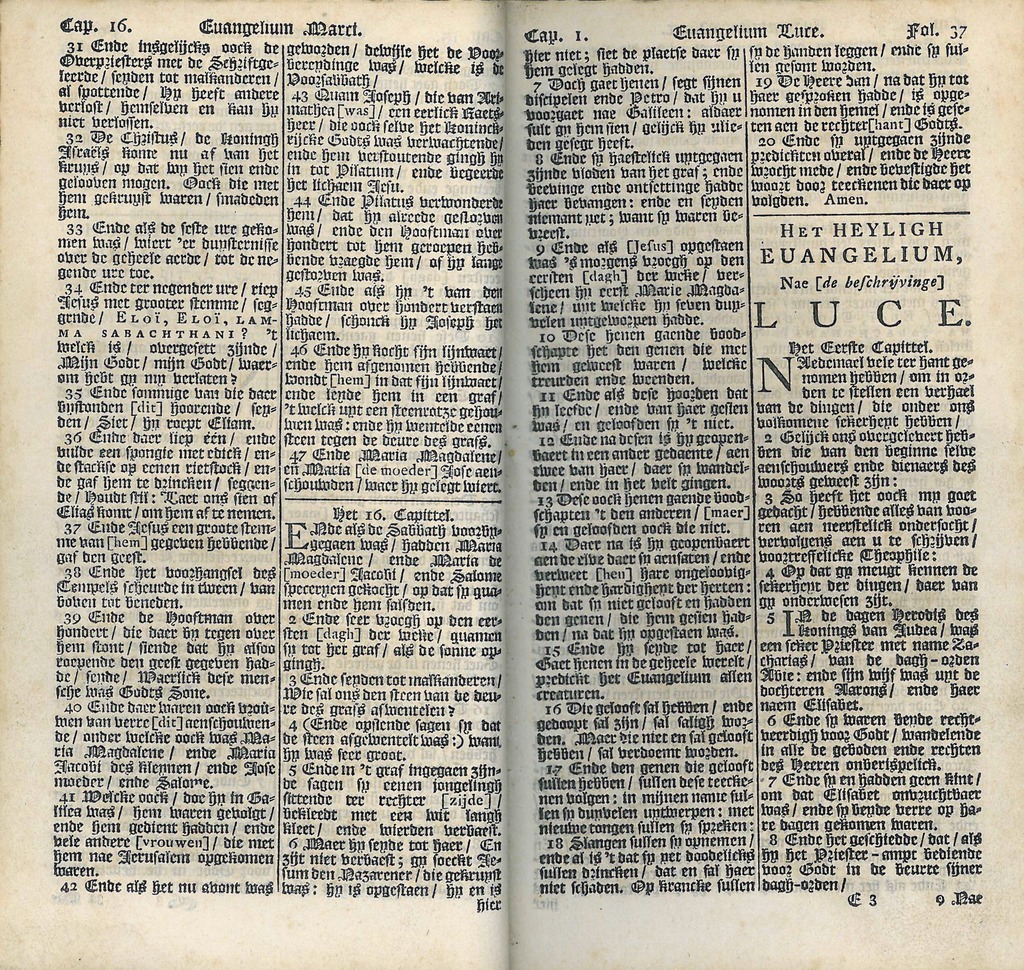
Image preprocessing
Not always, but sometimes images need some preprocessing to improve OCR results.
Some steps include:
- Apply grayscale (remove color from image)
- Binarization (reduce all pixels to black or white)
- Filter (e.g. of faint background shading)
- Rotate / deskew
- Text smoothing (via thresholding or blur)
One command line tool: OS-agnostic Fred’s Image Magick textcleaner utility
License
The materials for the OCR lessons are licensed a Creative Commons-BY 4.0.
The materials for the OCR lessons include contributions from and adaptions to lessons: (1) Build Your Own Text-as-Data Corpus: A Print-to-Bytes Primer from WIDH@NYCDH Week 2021 CC-BY-NC, Nicholas Wolfe; and (2) Images to Text: A Gentle Introduction to Optical Character Recognition with PyTesseract from the 2021 Text Analysis Pedagogy Institute CC-BY, Hannah Jacobs.